Sapiens: A Brief History of Humankind
92/100
Published
2.4Free software · GPL · for WordPress

Jim — Accessible Converter is the free WordPress plugin that converts batches of PDF, Word (.docx), Markdown and TXT files into blog posts or immersive reading pages, with built-in text-to-speech, an AI assistant and an integrated 0–100 SEO audit.
Open source (GPL v2 or later). Conversion happens on your own server, with no external API. View the code on GitHub
Every time you upload a notice, book, report or article as a simple download link, three things happen:
Rights, duties, and how to take part in the association
Anyone over 18 who lives in the municipality and accepts the bylaws may join. Registration is free and can be done at the office or on the website.
Meetings are held twice a year, with notice sent by email. Each member is entitled to one vote.
Rights, duties, and how to take part in the association
Anyone over 18 who lives in the municipality and accepts the bylaws may join. Registration is free and can be done at the office or on the website.
Meetings are held twice a year, with notice sent by email. Each member is entitled to one vote.
Jim takes the file you already have and delivers it as a page on your own WordPress site: real text, accessible, and looking like your site.
It’s the question every client asks, so let’s get straight to it: Jim doesn’t use an iframe or a PDF viewer. The text becomes the actual content of a page on your site.
The text is in the page’s HTML, not inside an image or a viewer.
The labels show what the page actually has in its code.
Headings, paragraphs, lists, tables and images all live in the page’s code. Headings come from Word’s heading styles and from the PDF’s bookmarks, when the file has them, and become the H2/H3 hierarchy and the table of contents. If the file arrives without headings, the Conversion Review screen and the Auto-fix headings button turn section lines into real headings, with nothing to re-upload.
By default, Jim deletes the original after converting: only the page exists. If you’d rather keep it, Jim won’t link to it, and by default asks search engines not to index it (noindex, on Apache and LiteSpeed; for nginx, the documentation has the rule).
Each document gets a score calculated on your own server: clear title, summary, author, heading hierarchy, readability, described images and publication status.
Publish in 1 click or via shortcode
no author in the file? Type the name or use Use my name, adjust the title and summary, use Detect from text and Auto-fix headings. The score is recalculated instantly.
the score shows what’s missing. Your search ranking also depends on your site and your content.
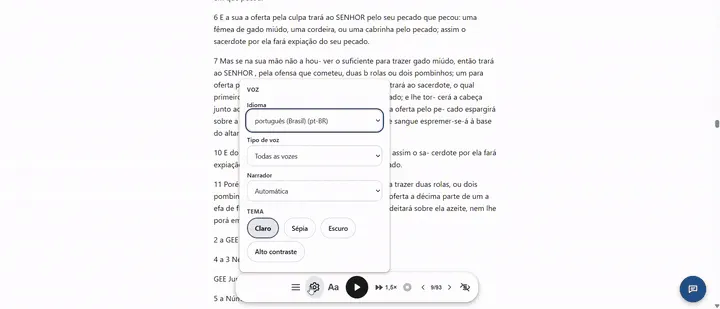
text-to-speech using the browser’s own voices (Web Speech API), highlighting the paragraph being read, with no paid audio service.
text size, and light, sepia, dark and high-contrast themes.
within the document.
readers highlight passages, generate shareable cards, and export their highlights as .txt.
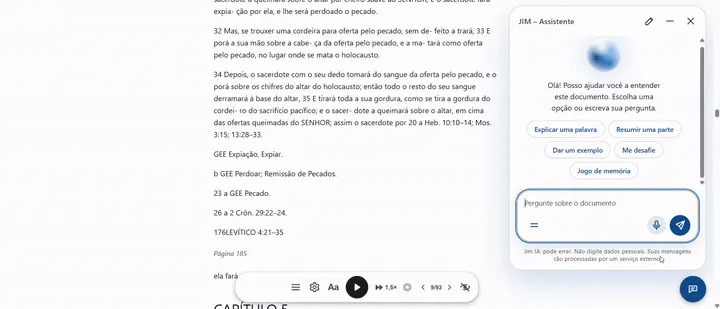
Imagine an 80-page notice that answers questions on the spot. Readers open the chat right on the page and ask by text or voice.
Send up to 20 files (.pdf, .docx, .md, .txt) at once, with categories, tags, author and batch language. A list shows the size and a Valid or Error badge for each file before you send it, and conversion then proceeds in a queue, one file after another.
| Without Jim | With Jim |
|---|---|
| 6 manual steps per file: receive, open, copy, paste, clean up breaks and headings, configure SEO. | 3 steps for up to 20 files, processed in a queue: select the batch, convert with the checklist and the score, publish in 1 click or via shortcode. |
| The visitor downloads the PDF and leaves your site. | The visitor reads, listens, highlights and shares, all within their own domain. |
| You don’t know where each file ended up. | A dashboard with the score and the exact page where each document is published. |
A 900,000-word book or a batch of 20 reports shouldn’t bring your hosting to its knees:
Jim exists to democratize publishing: it’s GPL, the code is open on GitHub, the plugin doesn’t track visitors or use cookies, and you don’t depend on a subscription, an API to convert files, or anyone else to keep your library online.
For anyone who creates knowledge and wants to be read:
Remove the download barrier and deliver a reading experience that’s more comfortable, accessible and easier to find.
Real HTML, with H2s and H3s from the chapters when the file has them. There’s no iframe and no PDF viewer.
By default, it’s deleted after conversion. If you keep it, Jim asks search engines not to index it (on Apache and LiteSpeed).
No. Jim doesn’t do OCR, and it warns you before publishing an empty page.
No. They’re uploaded all at once but converted in a queue, one after another.
Yes, just like any WordPress content, with the editor and revisions.
It doesn’t require any external programs, and the PDF size limit follows your server’s memory.
Yes. It’s free software, GPL v2 or later.
No. It ships turned off, and you use your own key or a local model.